Music Technology's Impact in Primary Schools: What Really Changes
By Corinne Hope5 min read
Updated
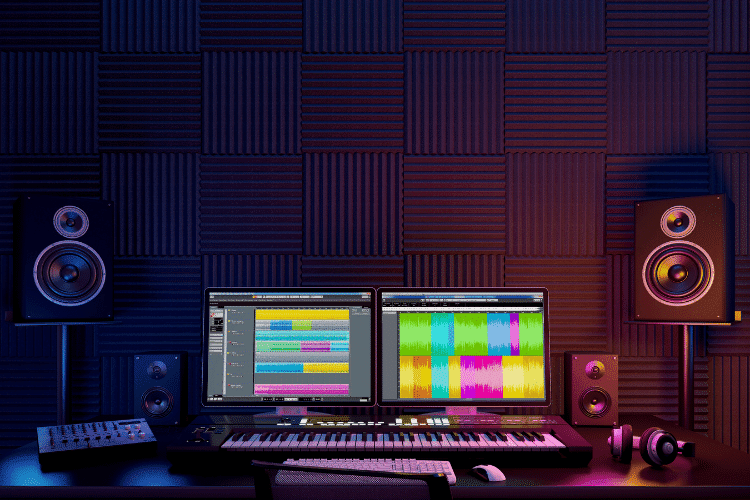
Music technology's impact in primary schools is real, but it's narrower than the adverts suggest. It changes a few things a lot, chiefly recording, composing without notation and access for children with SEND. It barely touches the heart of a music lesson: singing together, keeping a pulse and listening closely still need you and a room full of voices. Here's an honest look at both sides, with a recording routine you can use next lesson.
Recording and listening back: the biggest change music technology brings
Children rarely get to hear their own class from the outside. Any iPad or school laptop can now record them in seconds, and a recording does what no amount of 'a bit louder, please' can: children notice for themselves that the words are muddy or that one side of the room rushed. It's the biggest change technology makes to a music lesson, and it costs nothing.
Record, listen and improve (15 minutes)
- Sing or play something the class already knows (2 minutes).
- Record it in Voice Memos or the camera app, with the iPad a couple of metres away at the children's head height (1 minute).
- Before you play it back, give one thing to listen for, such as 'Can you hear every word?' Then play it through a proper speaker (2 minutes).
- Ask: 'What did you notice?' Take three answers, then choose one thing to fix together (3 minutes).
- Do it again with that one change, record it, and play the two versions back to back (5 minutes).
- Ask: 'Which was better, and why?' (2 minutes)
In KS1, give one simple thing to listen for, such as loud or quiet, and keep recordings under a minute. In KS2, let a child run the recording and ask sharper questions: did the two parts stay together, could you hear the tune over the chords? There's more on turning this into good feedback in feedback in the music classroom.
Composing without notation
Grid tools such as Chrome Music Lab's Song Maker, and the loops in GarageBand, let children build a tune or a groove and hear it straight away without reading a note. That opens composing up to children who'd be lost on a stave. The National Curriculum in England lists using technology appropriately among the aims of music, and the Model Music Curriculum suggests that KS1 pupils use music technology, where it's available, 'to capture, change and combine sounds'.
The honest catch is that arranging ready-made loops isn't much composing unless the children make the decisions. A child who taps every loop in turn has made a noise, not a piece. Give limits that force choices: three sounds only, an ending that's different from the beginning, one part they recorded themselves. And the tech doesn't replace notation. KS2 pupils still need to 'use and understand staff and other musical notations', so let a grid tune lead to writing a few of its notes on a stave.
Access for children with SEND
This is where technology can make the biggest difference to individual children. In GarageBand on an iPad, a child who can't manage a ukulele can turn the Autoplay knob, tap a chord strip and play a whole strumming pattern with one finger. The Scale button turns the keyboard into note bars from a single scale, so every note fits. Chrome Music Lab's Kandinsky turns whatever a child draws into sound, and GarageBand works with VoiceOver for children with a visual impairment.
The Model Music Curriculum celebrates 'the leaps in technology that have made available new tools and adapted instruments', and BBC Ten Pieces offers arrangements for adaptive instruments such as Soundbeam and Clarion, plus Figurenotes versions for children who need a different kind of notation. Talk to your SENCo about each child, though, because a screen and headphones can overwhelm some children as easily as they help others. Our post on building an inclusive music classroom covers the wider picture.
The pitfalls
Technology brings its own problems, and most of them are about time. Logging in, updating and charging can eat a third of a 45-minute lesson, so do all of it before the children arrive. Then there's isolation: one child, one screen and headphones on, and it stops being music-making together. One device between two, with a sharing slot at the end, fixes most of that.
Some children will 'finish' in three minutes, so have the next limit ready, such as a quiet middle section or a part of their own to record. If the app supplied the beat, the tune and the chords, check what the children actually decided. And because at some point the Wi-Fi will drop or the board won't talk to the iPad, always have a version of the lesson that needs no screen.
What technology doesn't change
No app teaches a class to sing in tune, feel a pulse together or sit in silence listening to a piece they've never heard. That comes from you, week after week. Use technology where it does something you can't do otherwise, like letting children hear themselves or giving a child a way to play, and leave it switched off the rest of the time.
Try the record, listen and improve routine next lesson: it needs one device and fifteen minutes. When you move on to composing, our free Three Little Birds on GarageBand lesson walks a class through building a song, and the free Virtual Piano quiz puts a keyboard on the board when you're short of real ones.
Resources to try
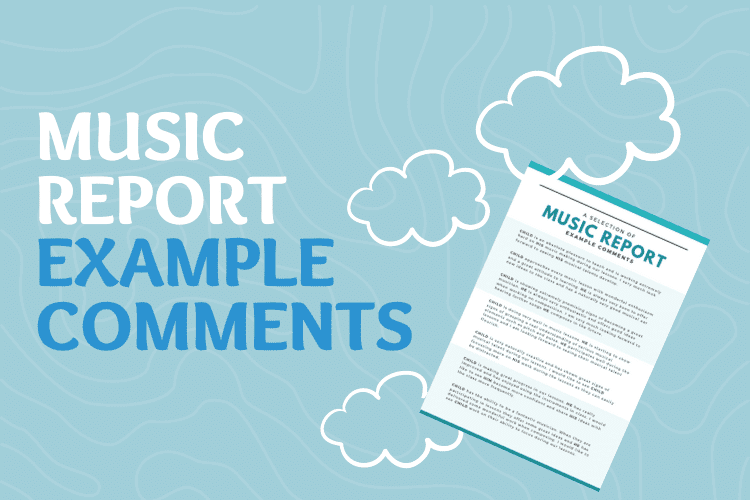
Primary Music Report: Easy Example Comments
Lesson Plans · Ages 0 to 11
Do you struggle to find the words when writing your 30th class music report?
Instrument Music Display Posters
Displays · Ages 0 to 11
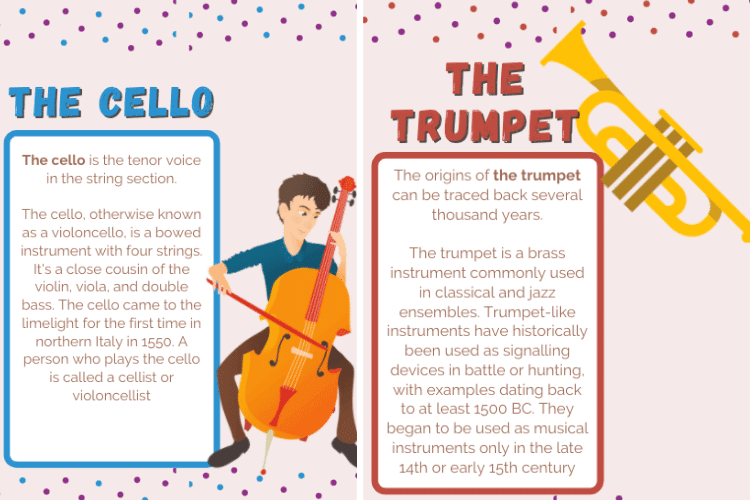
Really useful instrument Music display posters, showing a wide range of world and modern instruments, to decorate your music classroom with.
Let’s Learn About Folk Music!
PowerPoint
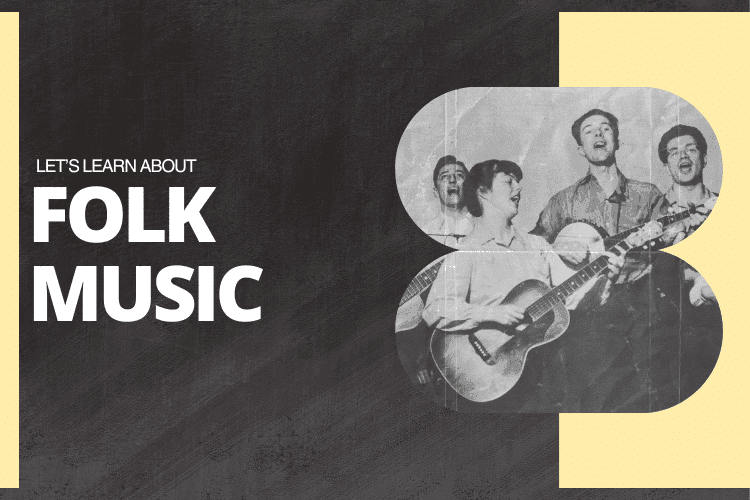
A PowerPoint about folk music: old tunes, songs that tell stories, and why they have been passed down.
Let’s Learn About Jazz Music!
PowerPoint
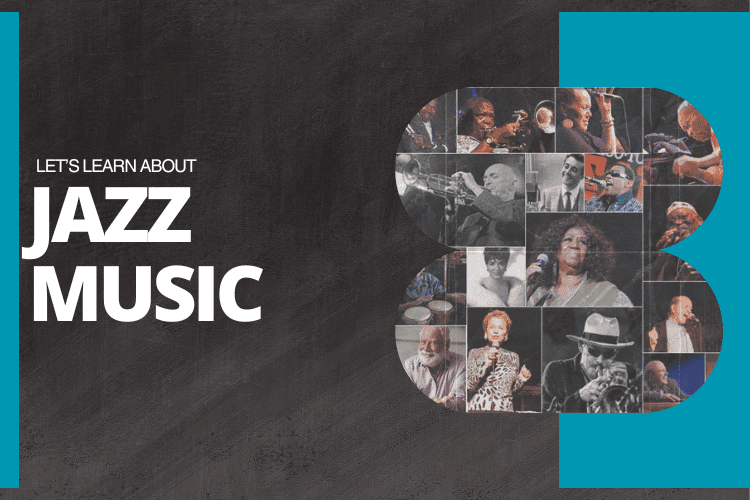
A PowerPoint about jazz: improvising, swing rhythms and the difference jazz has made to music.